Export Type
The data for export is provided in various information and/or CSV files.
Storage information is required for most Export Types. You can find examples for Storage Connection Strings in the table below. Information on other fields relating to storage can be found under numbers 7 and 8 on Add Export Job.
Export Type | Description |
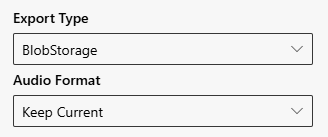
BlobStorage |
|
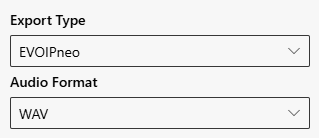
EVOIPneo |
|
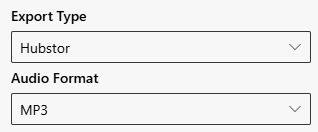
Hubstor |
|
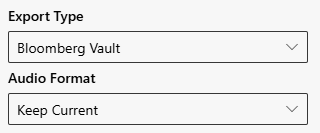
Bloomberg Vault |
|
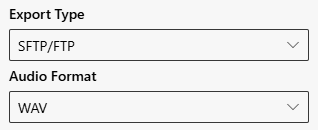
SFTP/FTP |
|
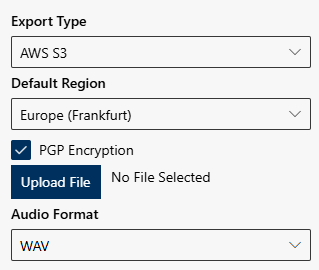
AWS S3 |
|
eKontakt |
Enter all required Storage information, see number 7 and 8 on Add Export Job.
|
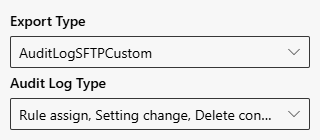
AuditLogSFTPCustom |
|
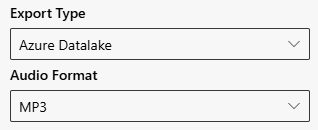
Azure Datalake |
|
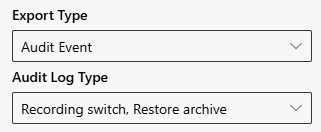
Audit Event |
|
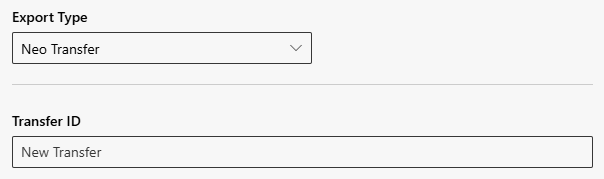
Neo Transfer | The field Transfer ID is filled automatically and the system generates a UUID for the transfer
No Storage information required.
|
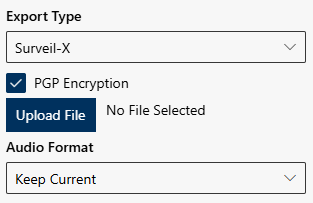
Surveil-X |
|
Audit Log Types
An Audit Log Type needs to be selected for the Export Types AuditLogSFTPCustom and Audit Event.
Audit log types | Description |
Recording conversation | Overview of recorded conversations and meetings |
Recording not recorded | Overview of conversations that have not been recorded. |
Replay conversation | Overview of conversations that have been replayed by users. |
Replay request | Overview of replays requested by users. |
Replay approved | Overview of replay requests approved by users. |
Delete conversation | Overview of conversations deleted according to the defined retention time (TTL). |
Delete request | Overview of conversations that have been requested to be deleted. |
Delete approved | Overview of conversations that have been approved of to be deleted. |
Analytics manual | Overview of manual analytics. |
Rule New | Overview of new rules that have been created. |
Rule assign | Overview of rules assigned to users. |
Rule delete | Overview of deleted rules. |
Rule change | Overview of changed rules. |
Settings change | Overview of changed user settings. |
User add | Overview of all users who have added new users. |
User delete | Overview of all users who have deleted users. |
Tenant add | Overview of new tenants added.1) |
Tenant change | Overview of changed tenant configurations.1) |
Partner add | Overview of added partners.1) |
Partner change | Overview of changed partners.1) |
Recording export | Overview of exported conversation to monitor internal or external data protection regulations. |
Recording upload | Overview of uploaded conversations. |
User login | Overview of users currently logged in. |
User change | Overview of changed user configurations. |
Group add | Overview of added groups. |
Group delete | Overview of deleted groups. |
Group change | Overview of changed group configurations. |
Recording import | Overview of imported recordings. |
Delete manual conversation | Overview of conversations deleted manually by a user. |
Recording switch | Overview of conversations during which the recording state has been switched. |
Recording disable next | Overview of conversations during which the recording of the next conversation has been deactivated. |
Recording disable cancel | Overview of conversations during which the recording of the next conversation has been deactivated and canceled again. |
Recording disable stop | Overview of conversations the recording of which has been stopped by the user. |
Recording disable current | Overview of conversations which have not been recorded because their recording has been deactivated in the previous recording. |
Restore archive request | Overview of conversations which require a request to record archived media. |
Restore archive approved | Overview of conversations which require an approval to record archived media. |
Restore archive | Overview of restored archive media. |
Recording archive | Overview of archived conversations |
Policy rule delete | Overview of deleted policy rules. |
TTL change | Overview of recordings for which the retention time (TTL) has been changed. |
Audit export | Overview of exported audits. |
1) Only authorized administrators with specific rights for user administration may create reports. |