Import Type
The data for the import is made available in different information and/or CSV files.
Storage information is required for most Import Types. You can find examples for Storage Connection Strings in the table below. Information on other fields relating to storage can be found under numbers 7 and 8 on Add Import Job.
Import Type | Description |
EVOIPneo | Only storage information is required, see numbers 7 and 8 on Add Import Job.
|
RedBox | Only storage information is required, see numbers 7 and 8 on Add Import Job.
|
ASC RI | Only storage information is required, see numbers 7 and 8 on Add Import Job.
|
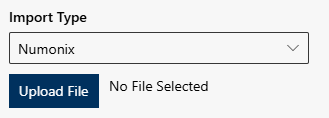
Numonix |
|
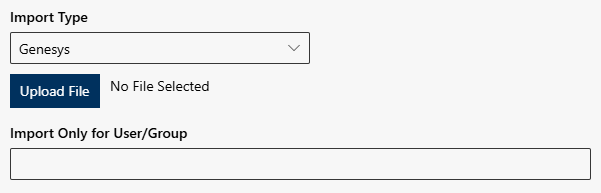
Genesys |
|
Nice | Only storage information is required, see numbers 7 and 8 on Add Import Job.
|
API 8x8 |
Recording Insights allows importing audio conversations and metadata from 8x8:
The required right User.Read.All must be shared for Recording Insights by the customer during onboarding.
|
Verba | The import type Verba resembles other existing Blob Storage imports. Only storage information is required, see numbers 7 and 8 on Add Import Job.
|
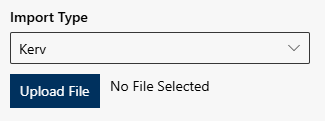
Kerv |
|
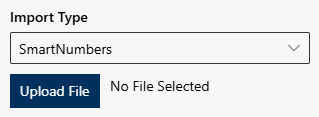
SmartNumbers |
|
Dubber | Only storage information is required, see numbers 7 and 8 on Add Import Job.
|
Abelia | Only storage information is required, see numbers 7 and 8 on Add Import Job.
|
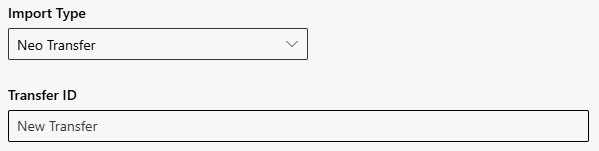
Neo Transfer |
No Storage information required.
|
Neo Download Client | Only storage information is required, see numbers 7 and 8 on Add Import Job.
|
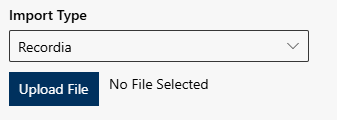
Recordia |
|
Import type API 8x8
Recording Insights allows importing audio conversations and metadata from 8x8:
- Direct import via API (Cloud Storage Service Public API), without using an exchange storage.
- 8x8 recording type Callrecording is required.
- Only 1:1 calls in MP3 format are transferred.
- Metadata of recording
- Date
- Start Time
- Duration
- Type
The required right User.Read.All must be shared for Recording Insights by the customer during onboarding.
Option/Function | Description | |
Interval | Interval setting for periodic import.
|
Option/Function | Description | |
Import Type |
| |
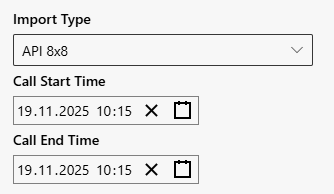
Call start time Call end time |
| |
Storage | ||
Storage Connection String |
| |
Retention Time (Days) Target Storage Fallback in Recording Insights | Recordings from 8x8 do not have a predefined retention time. The retention time is defined by Recording Insights. | ||
User Mapping | |||
User to User |
| ||
− | Fallback user | Define a Fallback user. If no user can be mapped to the recordings, the fallback user will be used.
| |
User to Compliance Officer |
| ||
Import type Verba
The import type Verba resembles other existing Blob Storage imports.
Data is imported in the following formats:
- Audio
WAV files in the format: PCM u8, 16 kHz Stereo - Video
MP4 files in the format: MPEG AAC 48kHz + H264 - Parts of metadata
XML files in the format: UTF-8
Option/Function | Description | |
Import type |
| |
Storage | ||
Storage Connection String |
| |
Storage Connection Name |
| |
Storage Root Directory |
| |
Retention Time (Days) Target Storage Fallback in Recording Insights | Recordings from Verba do not have a predefined retention time. The retention time is defined by Recording Insights. | |
User Mapping | ||
User to User |
| |
Fallback user | Define a Fallback user. If no user can be mapped to the recordings, the fallback user will be used.
| |