Legend | Option / Function | Description |
1 | Job Name | - In the Name field, enter a unique name for the new Export Job that does not already exist.
NOTICE! When saving the Export Job, an error message is issued if the name is already used for another Export Job.

|
2 | Enabled | Activates/deactivates the export job.
- On: Export job is executed according to schedule.
- Off: Export job is not executed.
|
3 | Interval | Specifies when or how often the export job is executed.
- One Time: Export takes place at the specified start time.
- Periodical: Export takes place at regular intervals (e.g. month, day, hour, minute).
- NOTICE! Dynamic display when activating: Periodical
|
4 | Start Time | Specify the date and time when the export job is to be executed. |
5 | Export Type | Defines the destination of the export and the associated information.
List of available export types, see Export Type |
6 | Audio Format | Select the desired audio format.
- Keep current: Recordings are exported in WAV by default. The default format for auto-save can be defined in the tenant configuration
- WAV: The conversation is converted to WAV format and exported.
- MP3: The conversation is converted to MP3 format and exported.
NOTICE! Conversion takes place before export. |
7 | Private Key Upload | - Click on the button Upload to upload and save a key file. Depending on your operating system, the installed file manager opens.
Microsoft Windows: The Windows Explorer opens. - Select the respective file and click on the button Open.
The selected key file is uploaded to Recording Insights.
The selected key file is displayed.
|
| Storage Connection String | Enter the name/character string of the connection for the export type.
Connect to the storage location by using a string, e.g. AccountName=<name>;Account Key=<key>; |
| Storage Container Name | Enter the name of the target folder. The Default Storage Container Name is ascexport. |
| Check Validity | Press the button to check if the connection string is correct and if the name is unique. |
8 | Storage Root Directory | Set the target directory for the storage. |
9 | Retention Time After Export | - Click on the button Retention Time After Export On/Off to define the retention time of the data after its export.
- On: The field Remaining Retention Time (in Days) is displayed.
- Off: Retention time has been deactivated by default. The exported recordings remain in the exported memory.
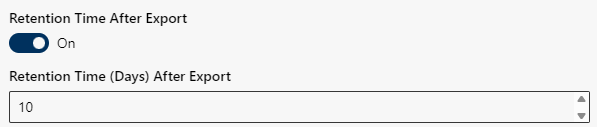
- Enter the number of days that the recordings are supposed to be retained after export.
The default value is 10 days.
|
10 | Export Settings | Export video and screen sharing with mixed audio channel as MP4 file.
 Merge Audio into Video: The audio channel is included in video and/or shared screens. Data is merged in an MP4 file. Merge Audio into Video: The audio channel is included in video and/or shared screens. Data is merged in an MP4 file.
Metadata in Transcript: Metadata information is included in the exported transcript file. Conversation details such as ID, participants, start time, duration, and language are added to the transcript content for easier identification and reference outside of Recording Insights.
NOTICE! The option Export settings is only available for the export types BlobStorage, Hubstor, SFTP/FTP, AWS S3, and Azure Datalake. |
11 | Filter | Define which conversations are supposed to be exported from a certain period of time.
The filters allow defining the media to be exported, from which period of time, as well as applying specific user filters or processing regions.
- Media Types
- Start Time
- End Time
- User Filter
- Processing Region
Configure filter, see - Filter (media, start time, end time)
The filter options allow defining the media to be exported, from which period of time, as well as applying specific user filters or processing regions.
Media Types
- Activate the check box of the media which are supposed to be exported.
- The following Media Types are available:
− Metadata,
− Audio,
− Video,
− Screen Sharing,
− User Screen,
− Upload,
− Documents,
− Chat,
− Transcript
|
12 | Start Time | - Enter the date and the time to apply the filter (format: TT.MM.JJJJ h:mm).
NOTICE! If no date and time is entered, the default time is the current date and time. The export job starts with the recording saved first.
|
13 | End Time | - Enter the date and the time to define the applicable period of time for the filter.
- Default setting for the end of the period of time is 31.12.9999 23:59 (format: TT.MM.JJJJ h:mm).
|
14 | User Filter | - Click in the field User Filter to export the recordings of one or several users or groups.
- NOTICE! If no user filter has been selected, all recordings will be exported.
When entering a user or a group in the field User Filter, the recordings of this user or group are exported. - Enter the first letter of the name of a user or of a group.
- Select one or several users or groups from the drop-down list.
|
15 | Processing Region | By means of the option Processing Region, you can select the region that the recordings are supposed to be exported to.
NOTICE! The processing region should be the same as the continental region EU, USA, APAC.
- From the drop-down list, select the processing region.
- The following regions are available:
− EU,
− USA,
− APAC,
− EUW,
|
 .
.