Edit Import Job
- Click on the icon
 .
. - The selected import job configuration is opened.
Legend | Option / Function | Description |
1 | Job Name |
When saving the Import Job, an error message is issued if the name is already used for another Import Job.
|
2 | Enabled | Activates/deactivates the import job.
|
3 | Interval | Specifies when or how often the export job is executed.
|
4 | Import Type | Defines the format of the import and the associated information. List of available import types, see Import Type |
5 | Storage Connection String | Connect to the storage location by using a string, e.g. AccountName=<name>;Account Key=<key>; |
Storage Container Name | Enter the name of the target folder. The Default Storage Container Name is ascexport. | |
Check Validity | Press the button to check if the connection string is correct and if the name is unique. | |
6 | Remaining Retention Time Import Source (in days) | Enter the number of days for which the imported data should be stored in the source directory of the import memory. The default value is 1 day. |
Retention Time (Days) Target Storage FallbackRecording Insights | Specifies how long the imported recording remains available within Recording Insights if no transmission takes place. The default value is 730 days. | |
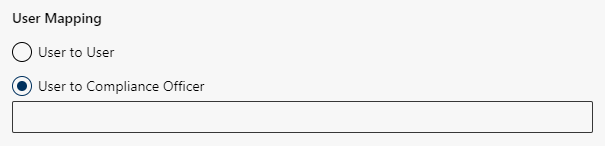
7 | User Mapping | The way in which imports are assigned to users. Dynamic display of User Mapping.
Only one user can be selected. |
8 | User Filter | Define a Fallback user. If no user can be mapped to the recordings, the fallback user will be used. Click on the field Fallback user. Select one or several users or groups from the drop-down list to map the imports to. |
9 | Processing Region | Determines the geographical region from which the data is to be imported. The processing region should be the same as the continental region EU, USA, APAC. The following regions are available:
|

- Click on the button Save to save the settings.
Click on the button Cancel to discard the settings.
Archive created and deactivated import jobs
Only import jobs which have been created and deactivated can be archived or moved to the invisible area Historical Jobs.
Archive/Move import jobs, see Archive Import Jobs.