Tab Quality Management
Overview of the scorecards applied to the conversation. The scorecards can serve as the basis for policies and can therefore be assigned. If several scorecards have been applied to a conversation, a reduced view is displayed first. You can edit each scorecard individually, see Edit Scorecard.
Legend | Option / Function | Description |
|---|---|---|
1 | Table |
|
2 |
| Export the entire contents of the scorecard as XLSX file, see detailed description below. |
3 |
| Edit the Score and the Comments of the current displayed Scorecard manually. The score must be between 0 and the defined maximum score. If the score field is left blank, N/A will appear, and the question will not be included in the evaluation.
|


Export
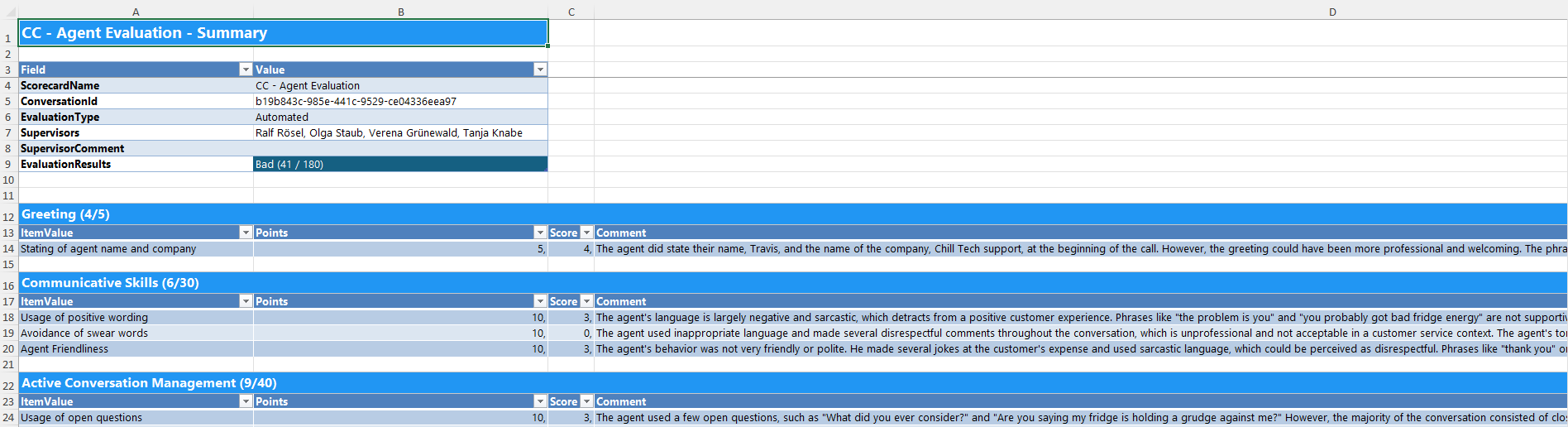
The export includes the entire contents of the scorecard and is provided in XLSX format. The file is available in English only. The export shows the following:
Tab Summary:
- Basic information about the exported Scorecard (e.g. Name, Supervisors, Evaluation Results)
- Detailed information for each section of the Scorecard with its elements and its's result (Item Value, Points, Score, Comment)
Tab Settings:
- Displays the evaluation key defined in the scorecard. This includes the definition of evaluation scales, point ranges and color coding for a clear visualization of the results, see Add Scorecard.
Evaluation Result
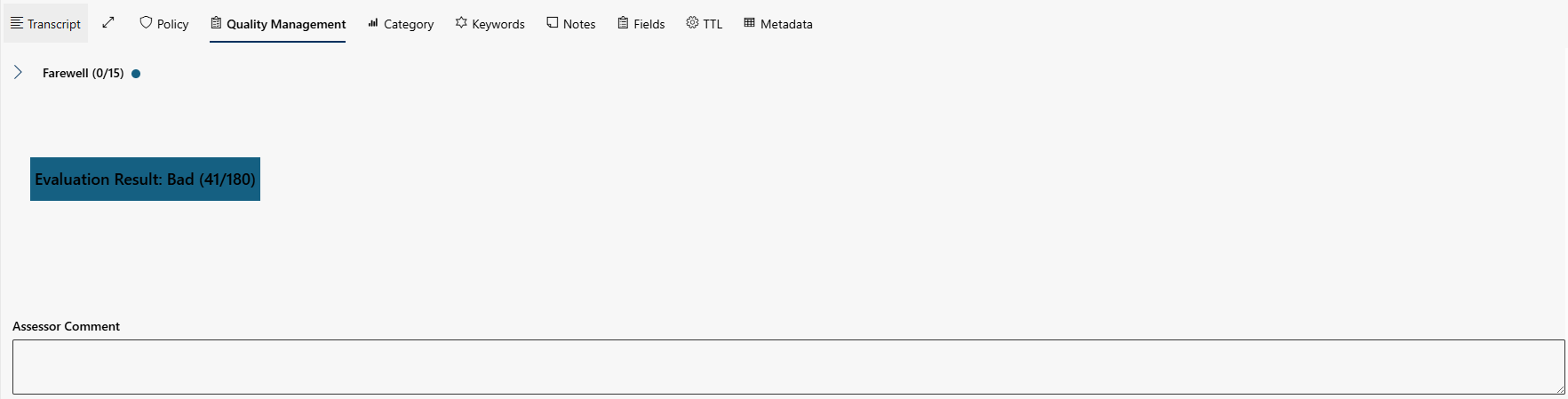
After opening a scorecard, an initially collapsed view is displayed in which only the section names and a section point comparison (achieved vs. maximum achievable) are shown. Colored markings based on the evaluation key provide a quick overview of the performance in the individual sections. The evaluation key corresponds to the configuration that was defined during the setup of the scorecard, see Edit Scorecard.
Optionally, assessors can add a comment to the Scorecard.
If no policy with the corresponding scorecard has been defined for the conversation, the following error message is displayed. This ensures that ratings are only carried out for conversations that have been correctly assigned.
