Display and Export Report in List View
The list view of the report offers a detailed overview of all affected conversations upon creating the report in a table. This information allows unambiguously identifying the conversation and checking important details such as time, participants, and content. In addition, you can generate an export report as XLSX-file to save the data for further analysis or archiving purposes. The data of the list view are structured differently and less detailed than the XLSXexport.

The criteria and the execution of the report list depend on the settings of the created report.
- Click on the icon
 in the top right corner of the widget.
 - Select the menu item
 Open Report to load the list of reports.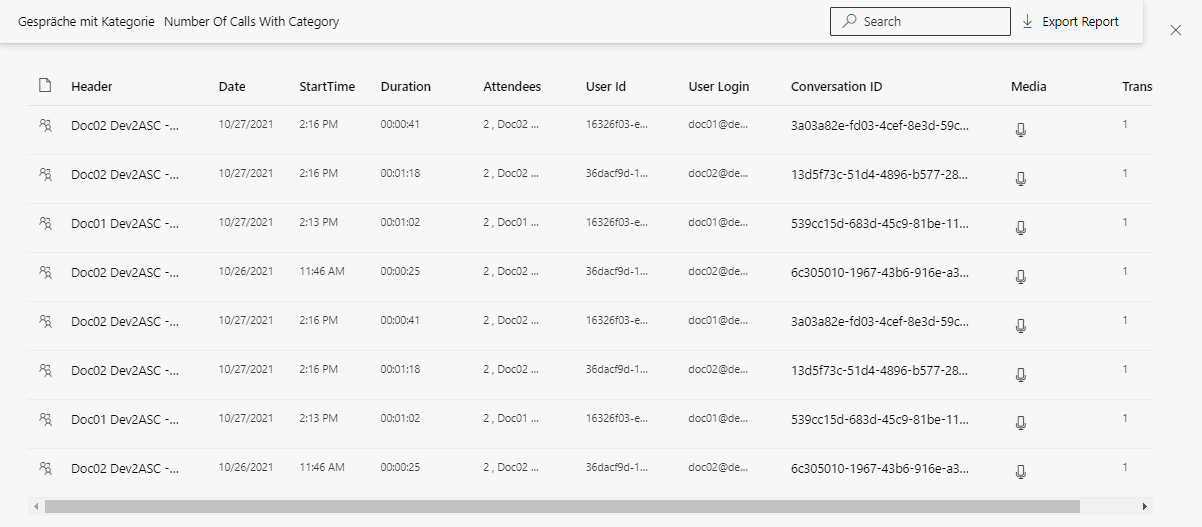
The list view and the XLSXfiles are structured in 4 main groups. Each group has a different data set upon issuing the data. The KPIs define the group that the data belongs to. This definition helps you to comprehend the structure and purpose of each group of data. That way, you can analyze and use the contained information efficiently.
Conversation details
This group contains information about the basic details of the communication as well as information about the participants. It includes data such as date, start time, duration, participants and UserID/UserLogin. You are provided with an overview of the structured data contained in the communication recordings and allows you to take a detailed look at the calls and their participants.
KPIs assigned to this group:
- Total Number, see Recording.
- Pending Archive, see Recording.
- Active Users, see Audit.
- User Check, see Audit.
- System Check, see Audit.
- Exported, see Audit.
- Imported, see Audit.
- Number Of Calls With Keyword, see Analytics.
- Number Of Calls With Category, see Analytics.
- AI Categorization, see Analytics.
- Policy Hits, see Analytics.
- Agents in conversation, see Wallboard.
- Agent Talk Time, see Wallboard.
Conversation details with errors and losses
This group contains the same content as the group Conversation Details; however it contains further information depending in the KPI. In the following, the additional information is listed in connection with the selected KPI.
KPIs assigned to this group:
- Not Exported, see Audit.
- Not Imported, see Audit.
- Policy compared, see Analytics.
- Category compared, see Analytics.
User and scenario details
This group provides information about the users and scenarios of the conversations. Among those are user IDs, user logins, scenario IDs and group memberships.
KPIs assigned to this group:
- Recorded Calls / Total, see Recording.
- Current Calls, see Audit.
- Calls With Problems, see Audit
- Live Inbound, see Wallboard.
- Live Total, see Wallboard.
Audit Log
This group provides you with information about audit logs and log details that are used to monitor events and activities related to the communication recordings, see Audit events to create an audit log.
KPIs assigned to this group:
- Audit log, see Audit.
Quality Management
The Quality Management KPI is designed to support the continuous improvement of communication processes by providing insights into the quality and compliance of recorded interactions. Its primary purpose is to enable compliance and operational teams to monitor and evaluate calls and other communications against predefined scorecards, ensuring that all interactions meet established standards. This KPI helps organizations maintain high standards, identify areas for improvement, and demonstrate adherence to regulatory and internal requirements..
KPIs assigned to this group:
- Agent compared, see Quality Management.
DTMF
Overview of phone numbers added to the whitelist via Dual-Tone Multi-Frequency (DTMF) input. This feature allows super admin users to manage whitelisted numbers administratively.
Activation of DTMF is only supported in Microsoft Edge browser.
Show single recording
- Click on a recording to display the detailed view of the recording, see Recording Details and Metadata.

Search for recordings.
- Click on the field
 Search and enter a character.
 - The column Header is searched.
- The search starts automatically.
Export report list
- Click on the button
 Export Report.
 - Microsoft Teams Windows-App:
The report list is downloaded to the download directory of the client computer. - Microsoft Teams Web-App:
Click on the button Save As to download the report list to the selected download directory or to another directory of the client computer.
Close report list
- Click on the icon
 to close the report list.
Example widget settings
- KPI: Calls with Category
- View option: User
- Value: Number
- Time format: Last month
- Category selection: Doc01 user
- To sort the columns, click on the column headline.
- For an ascending or a descending sort sequence, the icons
 or
or  are displayed next to the column headline respectively.